blog · works with Claude Code
Making your Mac menu bar cute: danglers
The Mac menu bar is mostly icons that want something from you: battery, wifi, a dozen apps you forgot you installed. We thought it could use a few friends.
This post is about danglers, the critters that hang under your menu bar in Charmpond. Then some general tips for a tidier menu bar, which work whether you use Charmpond or not.
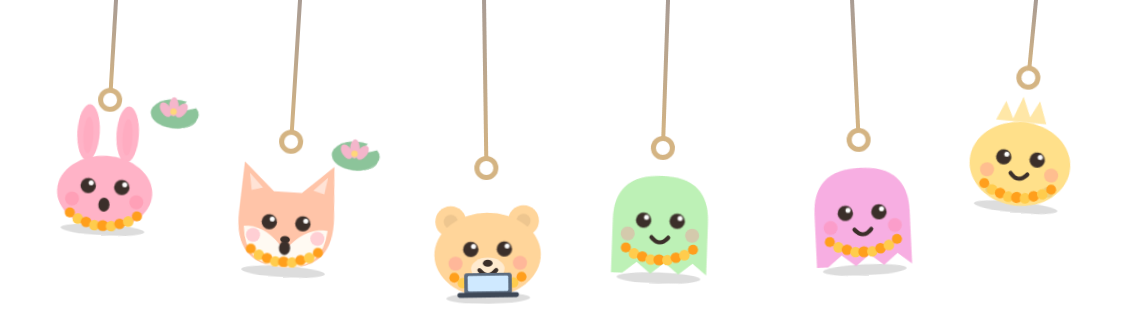
what danglers are
Charmpond shows each Claude Code session as a little critter in a pond. On a Mac, a few of them can also hang just under the menu bar on thin strings, right where your eyes already go.
They aren't only decoration. Each one is one of your agents, and it shows the same mood it has in the pond: swaying while it works, a lily pad floating up when it needs you, eyes closed when it's napping. So a quick look at the top of your screen tells you if anyone's waiting.
how to pull one
Drag a dangler down and let go. It springs back up with a spin, then smiles and sparkles. That's the whole feature, and it's very satisfying between tasks.
A few more things you can do:
- double-tap one to dress it up: a different creature, colour, bow, crown, party hat or a seasonal outfit like a marigold garland.
- open the pond from the menu bar icon when you want to see everyone at once.
keyboard friendly
Want to try the pull before you install anything? The dangler on our home page works with a keyboard. Tab to it, then:
- Enter or Space gives it a tug.
- ↓ (arrow down) pulls it.
- ← and → swing it left and right.
On your Mac, the danglers never take keyboard focus. That's on purpose: they'll never steal your typing from the editor. For keyboard use, open the pond window from the menu bar icon. There, Enter or Space on a critter opens its dress-up panel, and Esc leaves pond-only full screen.
how many hang
In ⚙ settings, Danglers lets you pick how many hang under the menu bar: 2, 3, 4 or 6. Six is the default. If your menu bar is already crowded, or you're on a small laptop screen, 2 or 3 feels just right.
From the menu bar icon you can also move them to the left, middle or right of the screen, or hide them for a while (handy for screen sharing).
calm mode and reduce motion
Some people love a bouncy menu bar. Some don't, and some days nobody does.
- reduce motion. If you turn on reduce motion in your Mac's accessibility settings, Charmpond follows it. The critters stay still, and a pull won't send one spinning.
- calm mode. In Charmpond's own settings, calm mode turns off the extras: critters breathe gently instead of hopping, and pulls stay calm too.
Either way, the moods still show. You lose the bounce, not the information.
general menu bar tidying
Cute critters need a bit of room. These tips work for any Mac:
- rearrange icons. Hold ⌘ Command and drag a menu bar icon to move it. Drag it off the bar while holding ⌘ Command to remove many system icons.
- choose what macOS shows. In System Settings, look for the menu bar options (on recent macOS versions they sit under Control Center). Turn off the ones you never click.
- turn off app icons you don't use. Most apps that add a menu bar icon have a setting like "show in menu bar". If you only open the app from the dock, switch it off.
- keep one glanceable thing. The menu bar is prime space. Use it for what you actually check all day, like the time, the battery and whether your agents need you.
what you need
Danglers need a Mac. The pond itself runs anywhere with Node.js 18 or later and opens in your browser. It only reads Claude Code's session logs in ~/.claude/projects, makes no network calls and needs no account. The only file it writes is your pond's look, in ~/.agent-pond/prefs.json.
Danglers come with every paid pond. If you run several agents, our guide to a calm multi-agent setup pairs nicely with them. And when one of them is busy for a while, follow the drink-water rule.